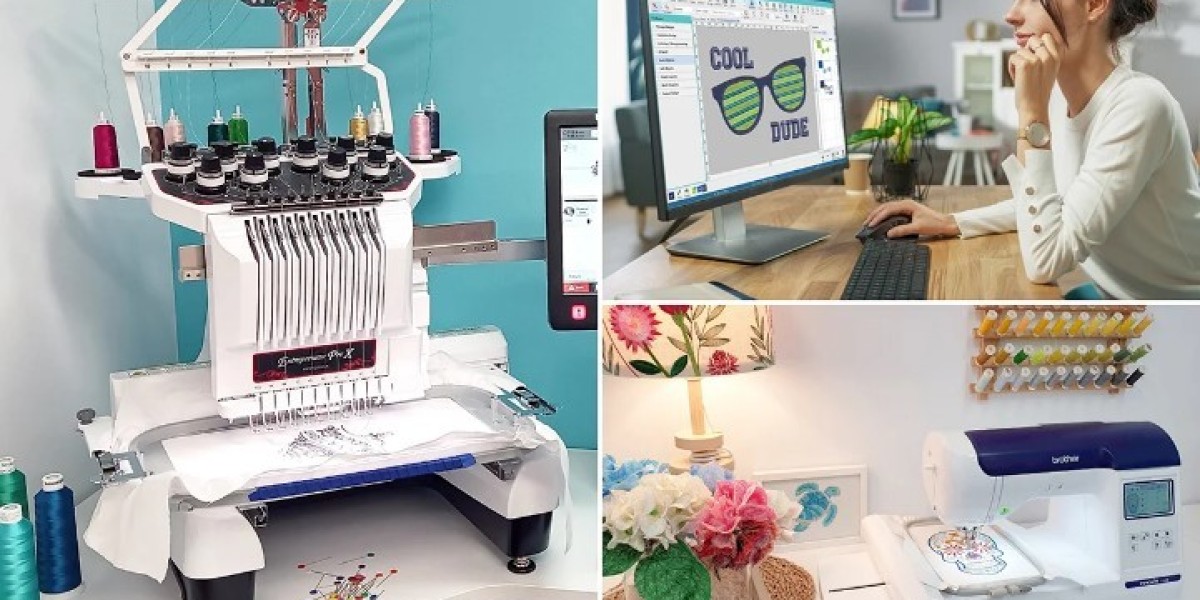

You have a logo that represents your team, your small business, or a special event. You want it embroidered on a bag, a hat, or a uniform with your Pfaff embroidery machine. But there’s a roadblock: your machine doesn’t read the logo file from your computer. It needs a .PCS file, Pfaff’s own embroidery format. If you’re new to this, the task of how to Convert Logo to PCS Embroidery File can feel overwhelming. Where do you even start? This guide is designed for absolute beginners. We'll demystify the process, explain the tools in simple terms, and give you a clear, step-by-step path to turn your digital logo into a stitch file your Pfaff machine can understand and sew.
Think of a PCS file as a special recipe written just for your Pfaff machine. Your logo is a picture of a cake; the PCS file is the detailed instructions telling the machine exactly how to bake it, step-by-step. This translation process is called digitizing. While professional digitizing is a skilled trade, beginners can achieve great results with the right approach and by understanding the core principles. Let’s walk through your options, from the easiest method to the more hands-on approach, so you can choose the path that fits your comfort level and get stitching.
What is a PCS File, and Why Can’t I Just "Save As"?
First, let's clear up a common point of confusion. Your logo is likely a .JPG, .PNG, or .PDF file. These are visual formats. They tell a screen or printer what to show.
A .PCS file (Pfaff Creative System) is a command format. It tells an embroidery machine how to sew. It contains:
Coordinates: The exact location for thousands of needle punches.
Thread Information: When to change colors and which colors to use.
Machine Commands: Instructions for trimming the thread and jumping between sections.
Because they are fundamentally different types of files, you cannot simply rename a .JPG to .PCS. You must create the PCS file from scratch using your logo as a guide. This is the digitizing process.
Your Three Main Paths as a Beginner
As a newcomer, you have three primary routes to get from your logo to a PCS file. We’ll list them from the easiest and most reliable to the more involved.
Path 1: Use a Professional Digitizing Service (Easiest & Most Reliable)
This is the #1 recommended path for beginners who need a quality result without the learning curve.
How it Works:
You find a reputable online digitizing service (e.g., DigitEMB, SewingSome).
You upload your logo file and select ".PCS" as your desired format.
You provide details like the stitch size and fabric type (e.g., "3 inches wide on a cotton cap").
A professional digitizer manually creates the PCS file for you, typically within 24 hours.
You download the PCS file, transfer it to your machine via USB, and stitch.
Why it’s Great for Beginners:
No Software to Buy or Learn: You leverage an expert's skill.
Guaranteed Quality: Professionals ensure the file has proper underlay and stitch density so it doesn’t pucker or break threads.
Fast Turnaround: You get a ready-to-sew file quickly.
Think of it like this: You wouldn't build your own oven to bake a cake. You’d use a kitchen. A digitizing service is your "kitchen" for this task.
Path 2: Use Beginner-Friendly Digitizing Software
If you want to learn and create files yourself, specific software is your tool.
Recommended Software for Pfaff Users:
Wilcom Hatch Embroidery: This is the top recommendation for beginners moving toward serious digitizing. It’s user-friendly, has excellent auto-tools, and exports directly to PCS. It offers a 30-day free trial.
Embrilliance Essentials: A popular, modular software that is less intimidating. You can start with the basic platform and add tools as you learn.
Pfaff-branded Software: Software like mySewNet or older Pfaff Creative Embroidery suites are designed for direct compatibility but can have a steeper learning curve.
The Core Digitizing Steps in Software:
Import Your Logo: Open the software and bring your JPG/PNG into the workspace.
Trace the Outline: Use the software’s "Auto-Digitize" or tracing tool. This creates basic shapes over your logo. For a simple logo, this can be a great starting point.
Assign Stitch Types: Click on a shape. Is it a thick line or border? Assign it as a Satin Stitch. Is it a large filled area? Assign it as a Fill Stitch.
Adjust Settings (The Key to Success):
For Fill Stitches, reduce the density to around 0.45mm. Default settings are often too dense and will make the design stiff.
Add Underlay (look for a button or tab for this). Choose a "Contour" or "Zigzag" underlay. This is a foundation stitch that prevents puckering.
Export as PCS: Go to File > Save As or Export, and choose .PCS from the format list.
Path 3: The Risky Path – Online Auto-Converters (Not Recommended)
A quick Google search will show websites that claim to convert JPG to PCS instantly for free. Beginners should avoid these.
Why? These automated tools don't understand embroidery. They create a solid block of stitches with no underlay, incorrect density, and chaotic color changes. The resulting PCS file will almost certainly:
Pucker and distort your fabric.
Cause thread breaks.
Look nothing like your clean logo.
It’s a fast track to frustration and wasted materials.
Step-by-Step: Preparing Your Logo for Success
No matter which path you choose, starting with a good logo file is 80% of the battle.
Find the Original Vector File: This is the golden rule. Ask your designer for the .AI, .EPS, or .SVG file. These "vector" files are made of clean lines and shapes, not pixels. They are a digitizer's (or software's) dream and will give you the cleanest results.
If You Only Have a JPG/PNG: Make sure it is high-resolution, has a plain background, and has sharp edges. A tiny, blurry logo will digitize poorly.
Know Your Details: Decide on the exact size you want it embroidered (in inches or centimeters) and think about the fabric (e.g., thick towel, stretchy t-shirt, canvas bag). This info is crucial for getting the stitch density right.
What a Beginner Needs to Know About Stitch Density
This is the most important technical concept for a new digitizer. Density refers to how close together the stitches are.
Too Dense: The design becomes stiff like cardboard and can pull the fabric, causing puckering. (Common mistake!)
Too Sparse: The fabric shows through between the stitches, making the design look weak and unprofessional.
Beginner Tip: In your software, if you see a density setting of "0.30mm," that's very dense. Try changing it to "0.45mm" or "0.50mm" for a much better, softer result on most fabrics.
Your Action Plan: Getting Your First PCS File
Gather: Get your best logo file (vector if possible). Note your desired size and fabric.
Choose Your Path: Are you curious to learn? Download the Hatch Embroidery 30-day free trial. Do you just need the result? Find a digitizing service with good reviews.
Execute:
If Using a Service: Upload, order, wait, download your PCS.
If Using Software: Import, auto-trace, assign satin/fill stitches, REDUCE FILL DENSITY to ~0.45mm, ADD UNDERLAY, export as PCS.
Test!: Transfer the PCS file to a USB, load it into your Pfaff, and stitch it on a scrap piece of your project fabric first. This catches any issues before you stitch on the final item.
Conclusion: Your Logo, Ready for the Hoop
Learning how to Convert Logo to PCS Embroidery File is your first step from being a machine operator to a true creator with your Pfaff. It unlocks the potential to personalize and produce custom work.
For your very first project, the safest and most rewarding bet is to use a professional digitizing service. You'll get a fantastic result, see what a good PCS file looks and sews like, and build confidence. Once you’ve done that, you can explore the 30-day trial of Hatch Embroidery to start playing with the software in a low-pressure way, using simple logos to practice.
Remember, every expert was once a beginner who successfully converted their first file. Start with a clear, simple logo, follow the steps to avoid common density pitfalls, and you’ll be holding a custom-embroidered piece you created from scratch. Now, find that logo and begin its journey from your screen to a stitch.